Pick the tool for the job.
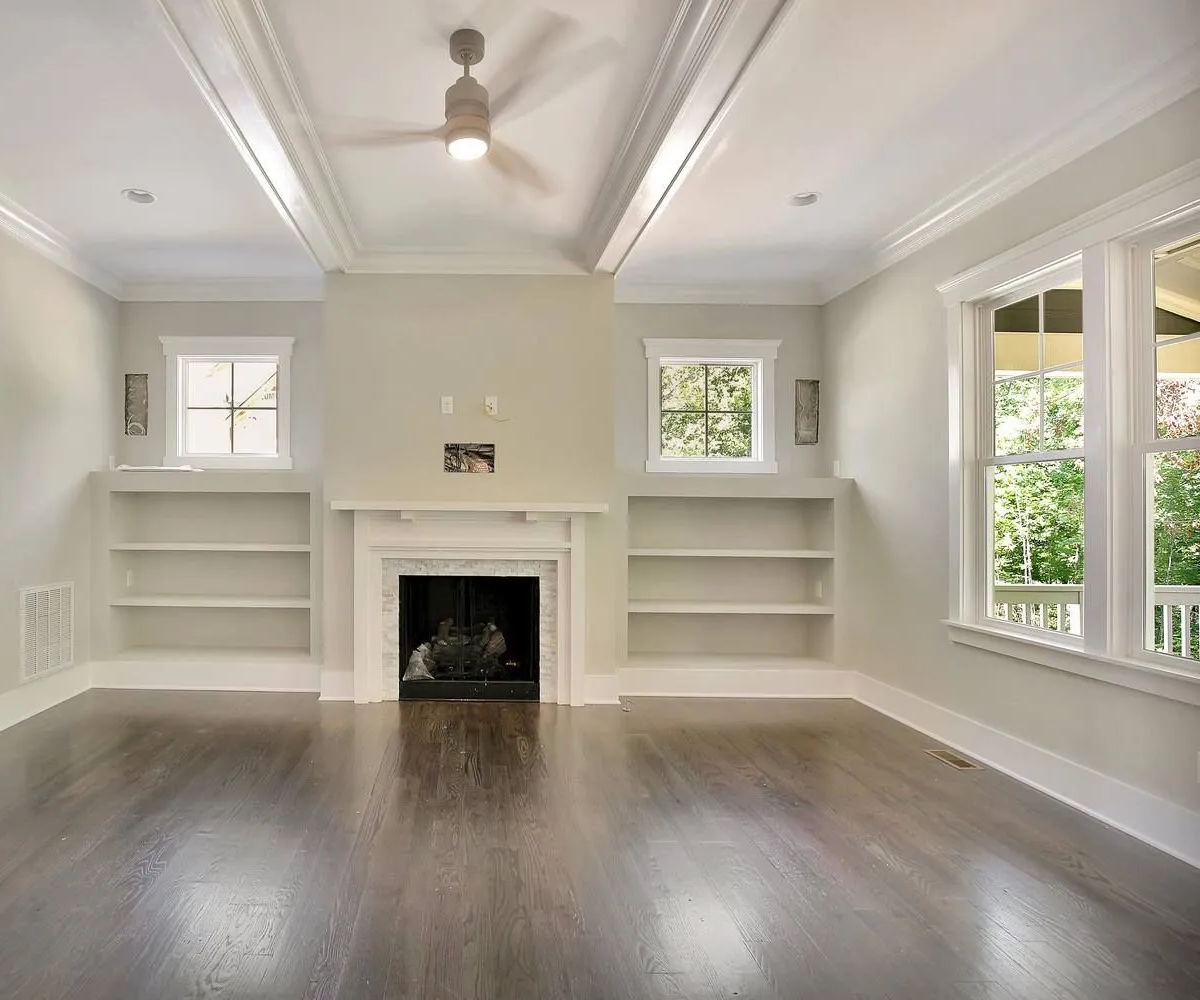
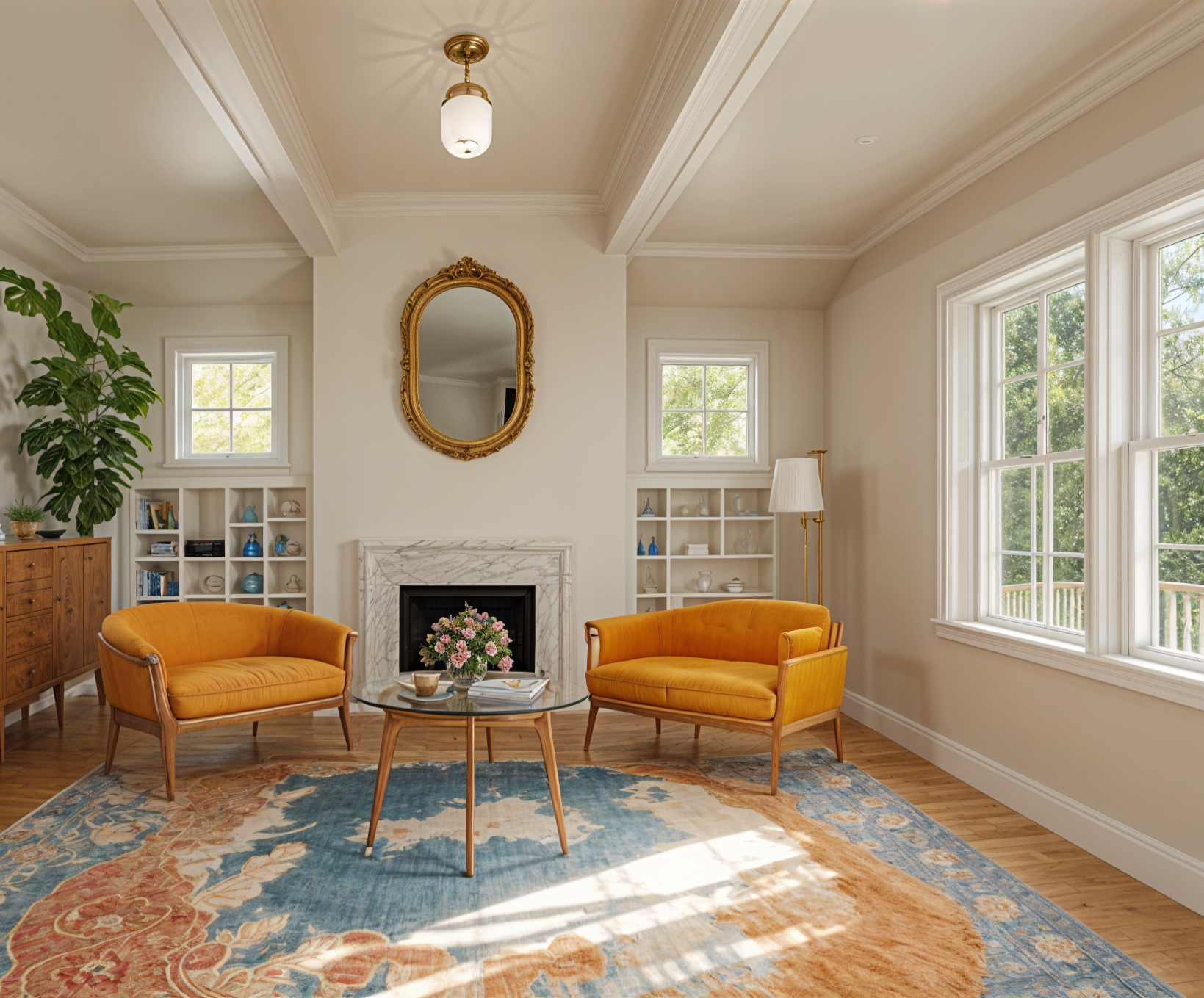
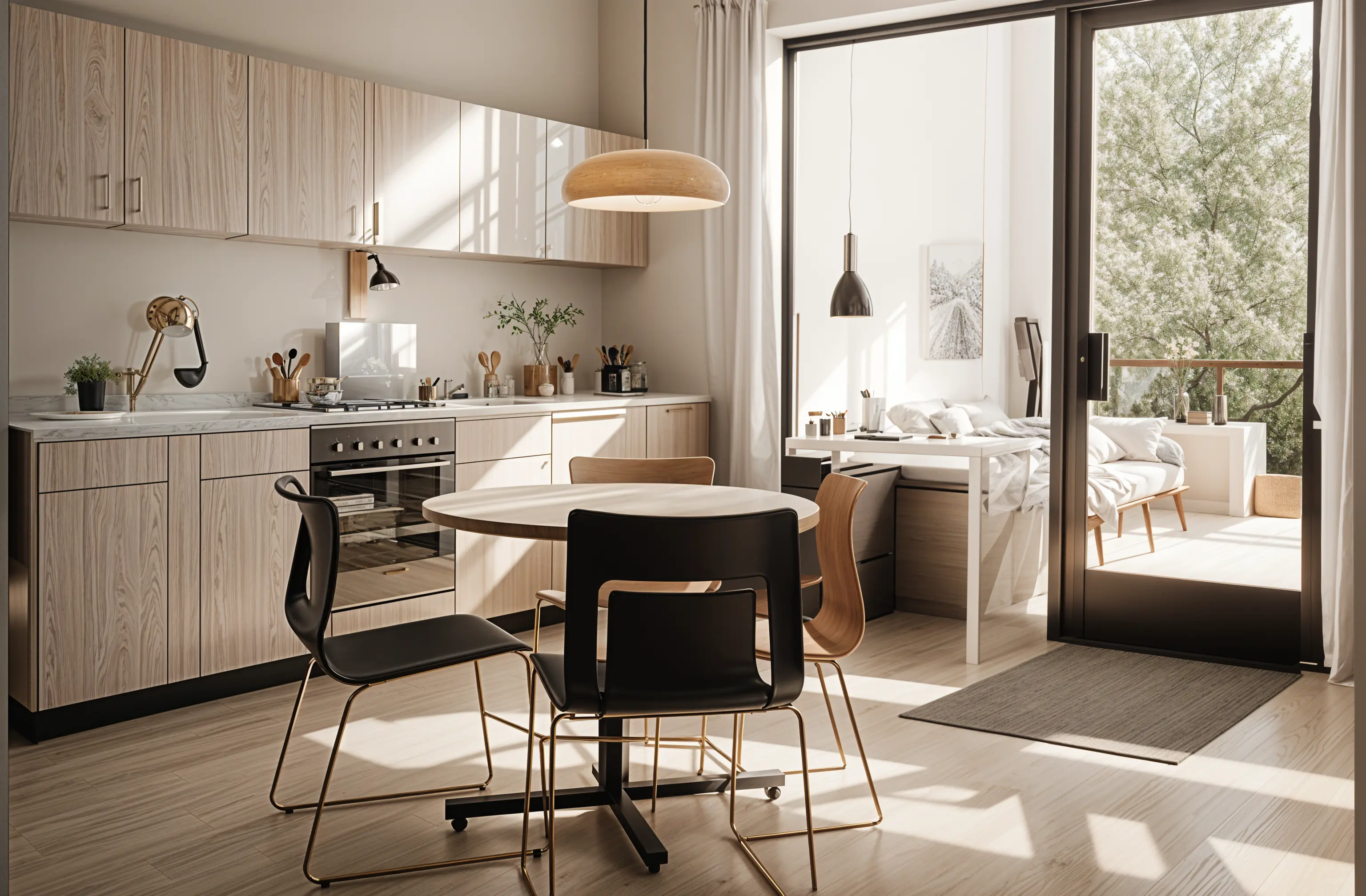
Most projects start with Remodel: upload a room photo and try new styles on it. The other tools handle single changes, ideas, empty rooms and finishing touches.
What each tool is for
 How Remodel works
Remodel
Redesign a room you’ve photographed in a new style, inside or out.
Starts from a room or house exterior photo · Free account and every plan; house exteriors need a paid plan
How Remodel works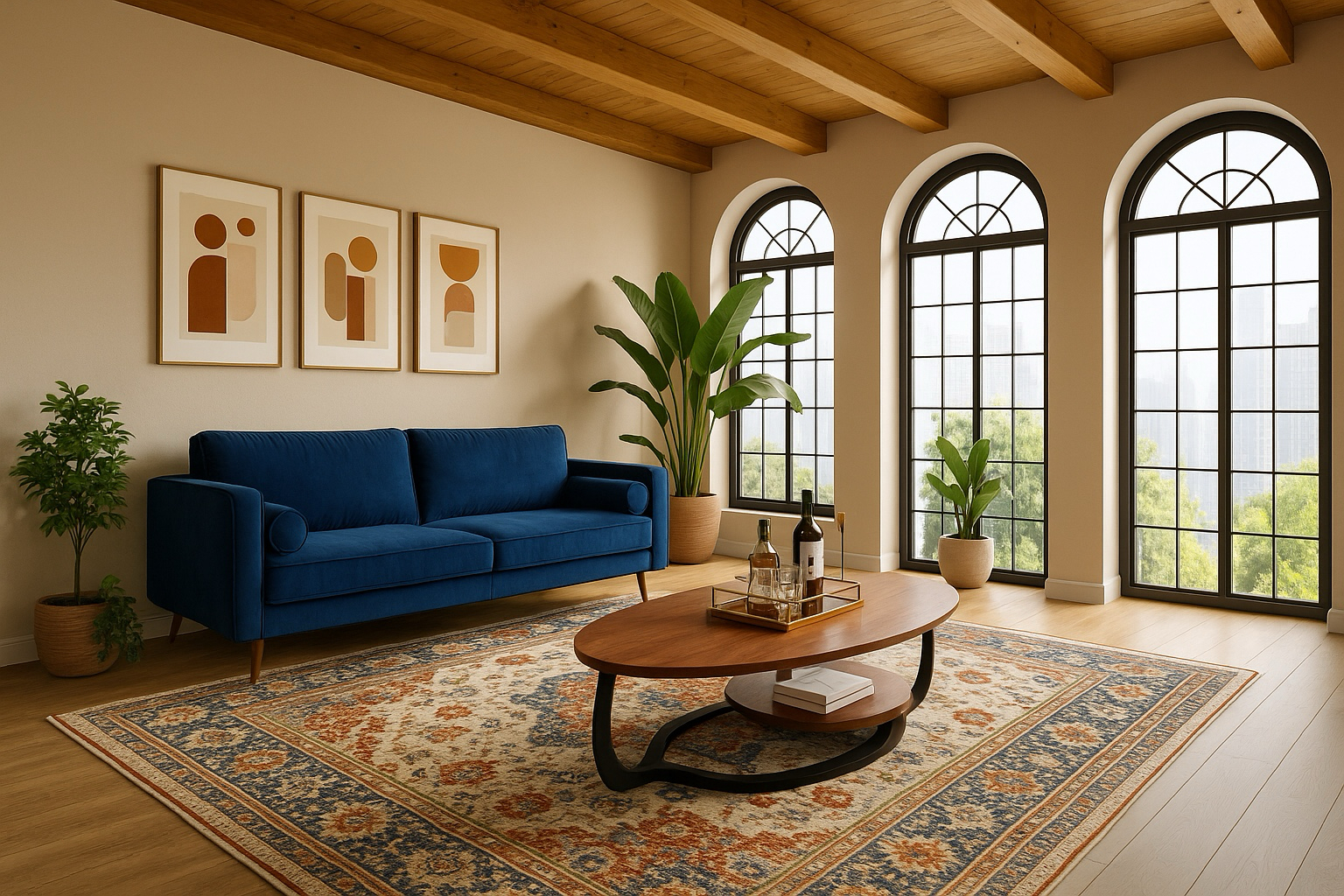 Try Edit
Edit
Change one thing, like the floor or the sofa, and leave the rest of the room alone.
Starts from a photo plus a short instruction · Every paid plan
Try Edit Try Brush
Brush
Paint over an area and say what goes there, or remove it. Uses the same monthly edits as Edit.
Starts from a photo plus a painted area · Every paid plan
Try Brush How Imagine works
Imagine
Explore an idea before you have a photo. The preview follows what you type.
Starts from a written description · Plus and Pro
How Imagine works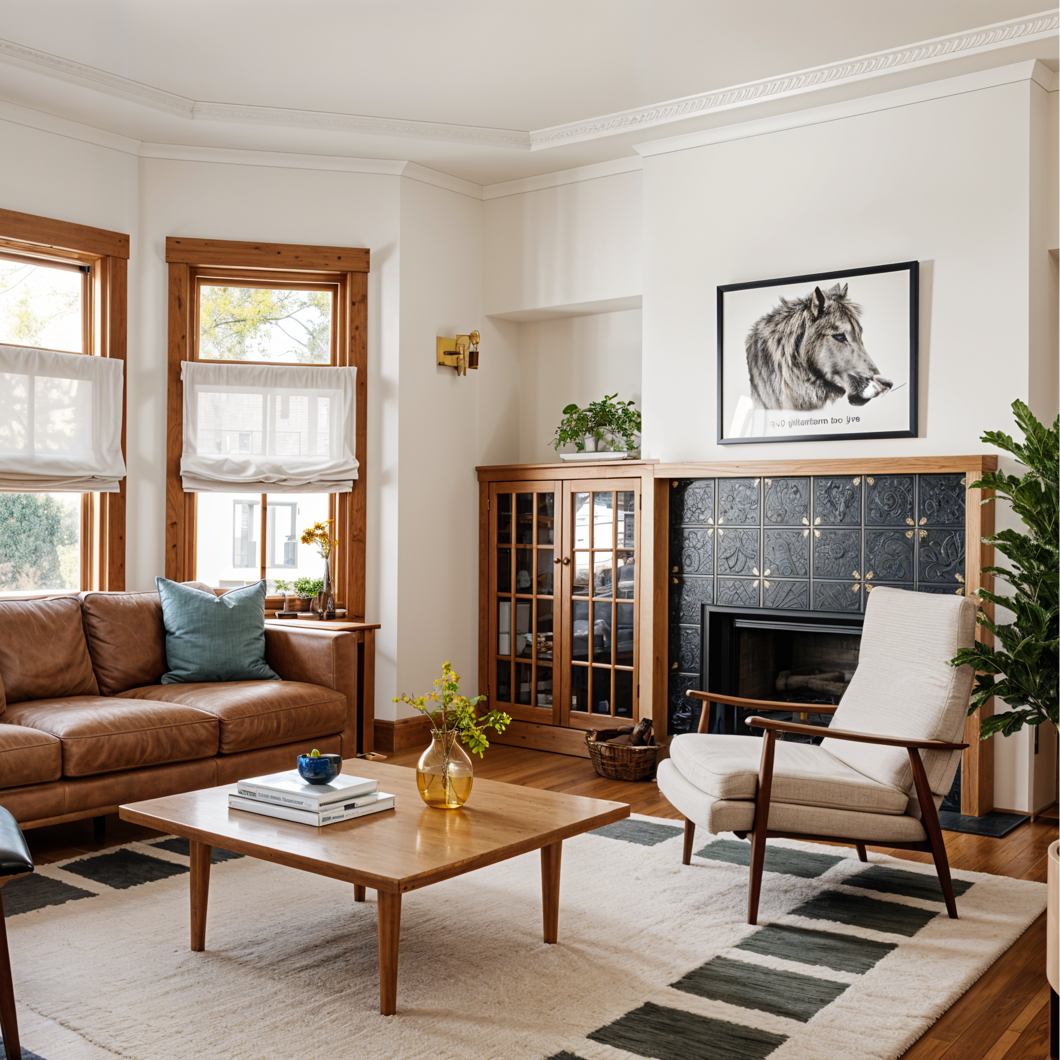 How Enhance works
Enhance
Sharpen and upscale a design or photo so it holds up when downloaded or printed.
Starts from a saved design or any photo · Free account and every plan
How Enhance works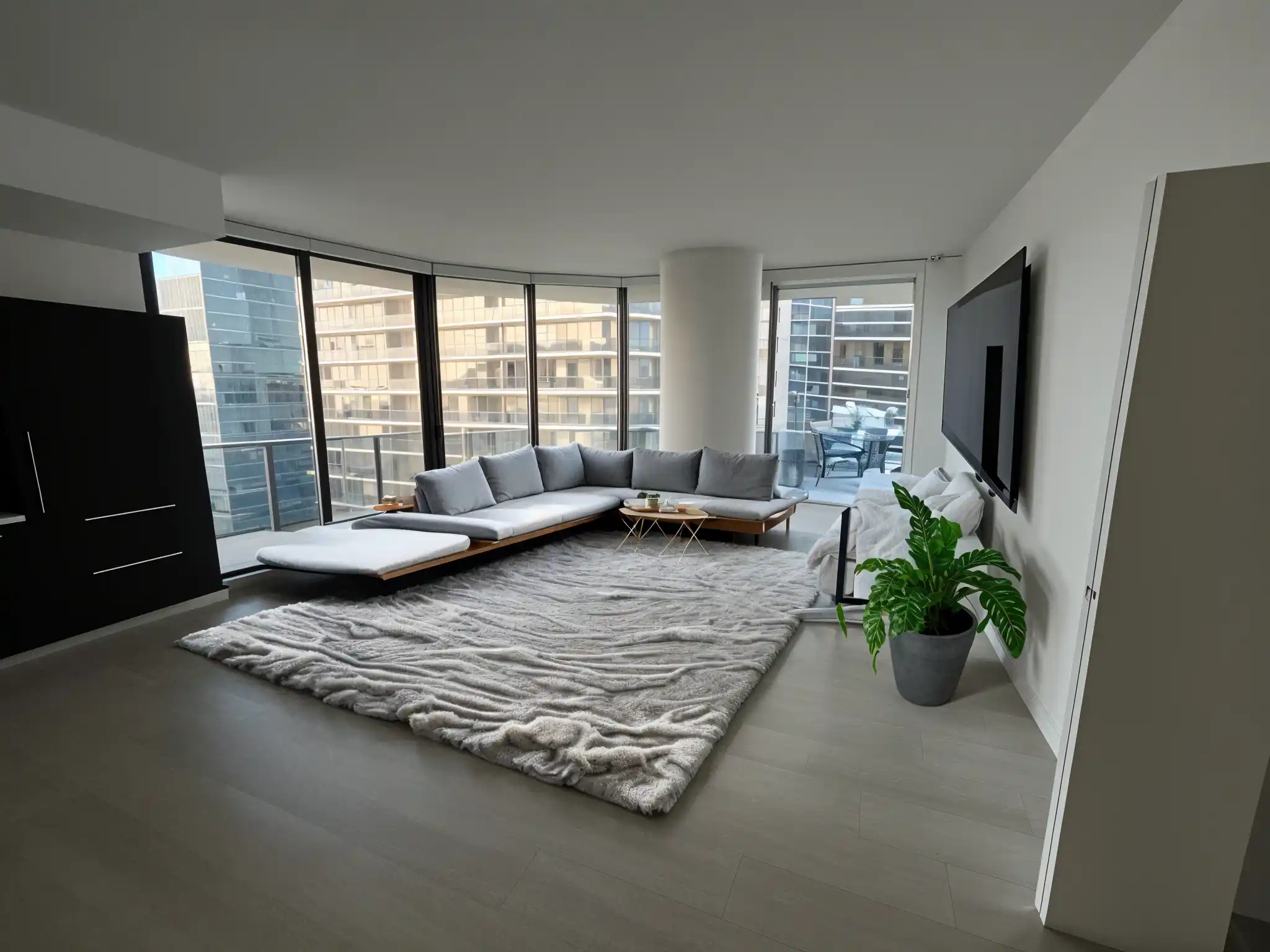 How Stage works
Stage
Furnish an empty room piece by piece, or brush away clutter with Clean.
Starts from a photo of the room · Every paid plan
How Stage works
What these tools don’t do
Every design is a visual concept. None of the tools measure your space, produce floor plans or 3D models, or create construction drawings. Use them to choose a direction, then confirm sizes and details with a professional.
Questions about the tools
- Which Remodeled AI tools are free?
- Remodel and Enhance work on a free account, which needs no card and comes with starter credits. A free account can redesign living rooms, bedrooms, bathrooms, kitchens, dining rooms and offices in 7 styles. Edit, Brush and Stage come with every paid plan, Imagine comes with Plus and Pro, and house exteriors need a paid plan. On the web, paid plans start at $13 a month, or $91 a year. Pricing lists what each plan includes.
- Which tool should I start with?
- Remodel. Upload a photo of the room, pick a style and compare the design with the original on a before-and-after slider. The other tools come after: Edit or Brush to change one thing in a design, and Enhance to sharpen it before you download it.
- What is the difference between Remodel, Edit and Brush?
- Remodel restyles the whole room in the style you pick. Edit changes one thing you describe in words, such as the sofa or a wall color, and leaves the rest of the room alone. Brush changes or removes only the area you paint over.
- Can I design a room without a photo?
- Yes, with Imagine. You describe the room in words and it creates one from the description. Imagine comes with the Plus and Pro plans. Every other tool starts from a photo or a design you saved.
- Can it furnish an empty room?
- Yes, with Stage. It adds furniture and decor to a photo of an empty room, or clears clutter out of a furnished one. Stage comes with every paid plan.
- Can it redesign the outside of a house?
- Yes. Remodel works on a photo of the front of a house as well as on a room. House exteriors need a paid plan.
- Do the tools work on a phone?
- Yes. Remodeled AI runs in the browser at remodeled.ai, on a phone or a computer, and there is an iPhone app. There is no Android app; on Android, use Chrome (how).
- Is Remodeled AI the same as Remodel AI?
- No. Remodeled AI (remodeled.ai) is made by Remodeled AI, LLC. Remodel AI (remodelai.io) is a separate product from a different company. Remodeled AI vs Remodel AI shows how to tell them apart.
More on photos, privacy and billing in every question on one page.
Guides by project
Pick the page closest to what you’re doing.
Not sure where to start?
Start with Remodel. Upload a photo of a room, pick a style and compare the design with the room you have now. Free to start.